-
From within the your Hovr, navigate to the top right corner
-
Click on the “On-Site Editor” button
-
It will take you to your website and you will have the “Admin Bar” at the bottom
-
Navigate to the Moment you want to edit the label of
-
Click the “Customize” button
-
The “Management Panel” will open on the right side of your screen
-
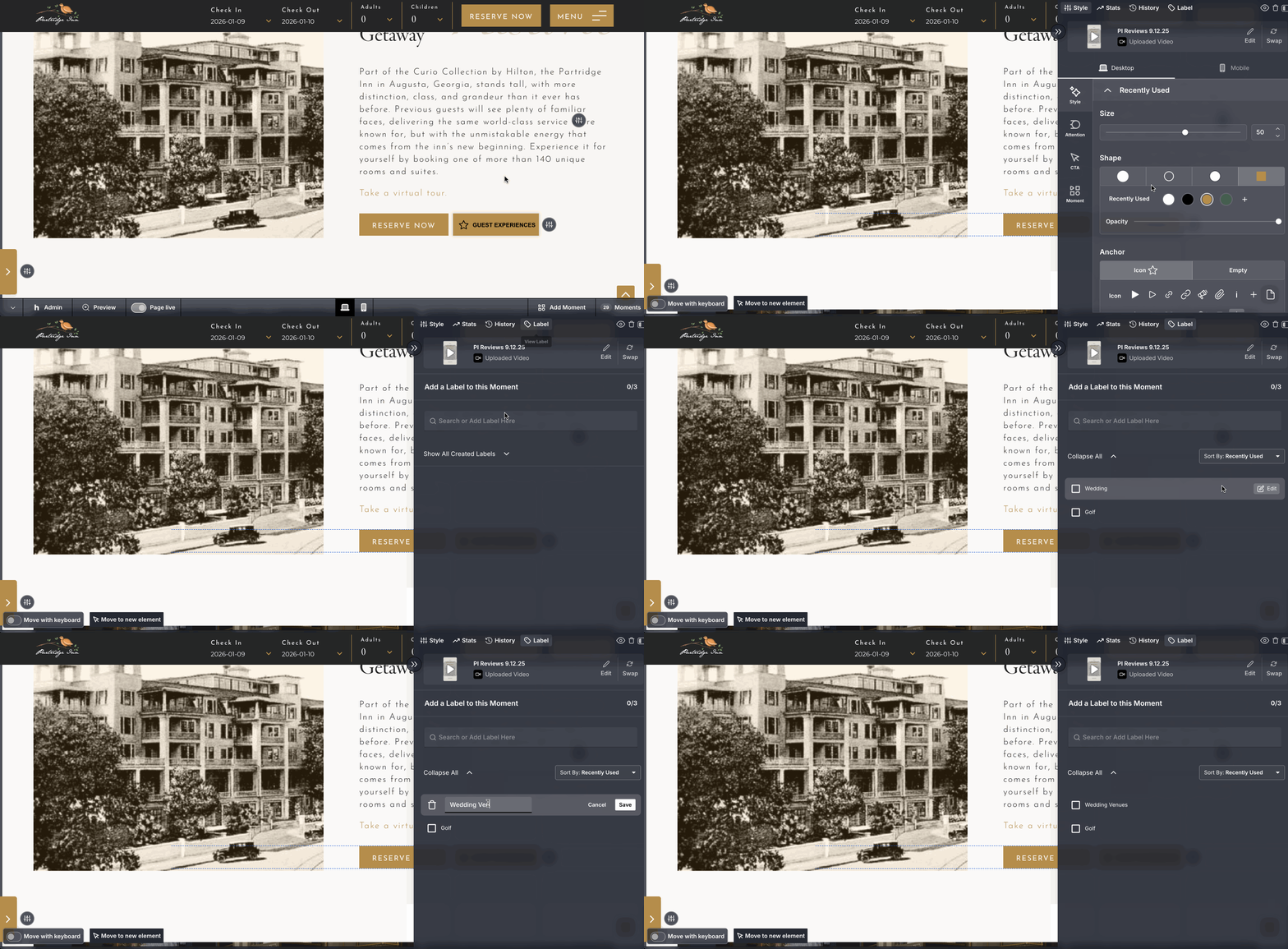
Click the “Label” tab at the top of the panel
-
Under the “Add a Label to this Moment” section, click on “Show All Created Labels”
-
Hover over the label you want to edit
-
Click on the “Edit” button to the far right of the selected label
-
You are now able to edit the name of the label in the text box
-
Click “Save”
-
The label will update immediately
Excellent! You just edited a label in the on-site editor.
English
![Icon-Wordmark-50px-Sorbet-3.png]](https://help.gethovr.com/hs-fs/hubfs/Icon-Wordmark-50px-Sorbet-3.png?height=40&name=Icon-Wordmark-50px-Sorbet-3.png)