![Icon-Wordmark-50px-Sorbet-3.png]](https://help.gethovr.com/hs-fs/hubfs/Icon-Wordmark-50px-Sorbet-3.png?height=40&name=Icon-Wordmark-50px-Sorbet-3.png)
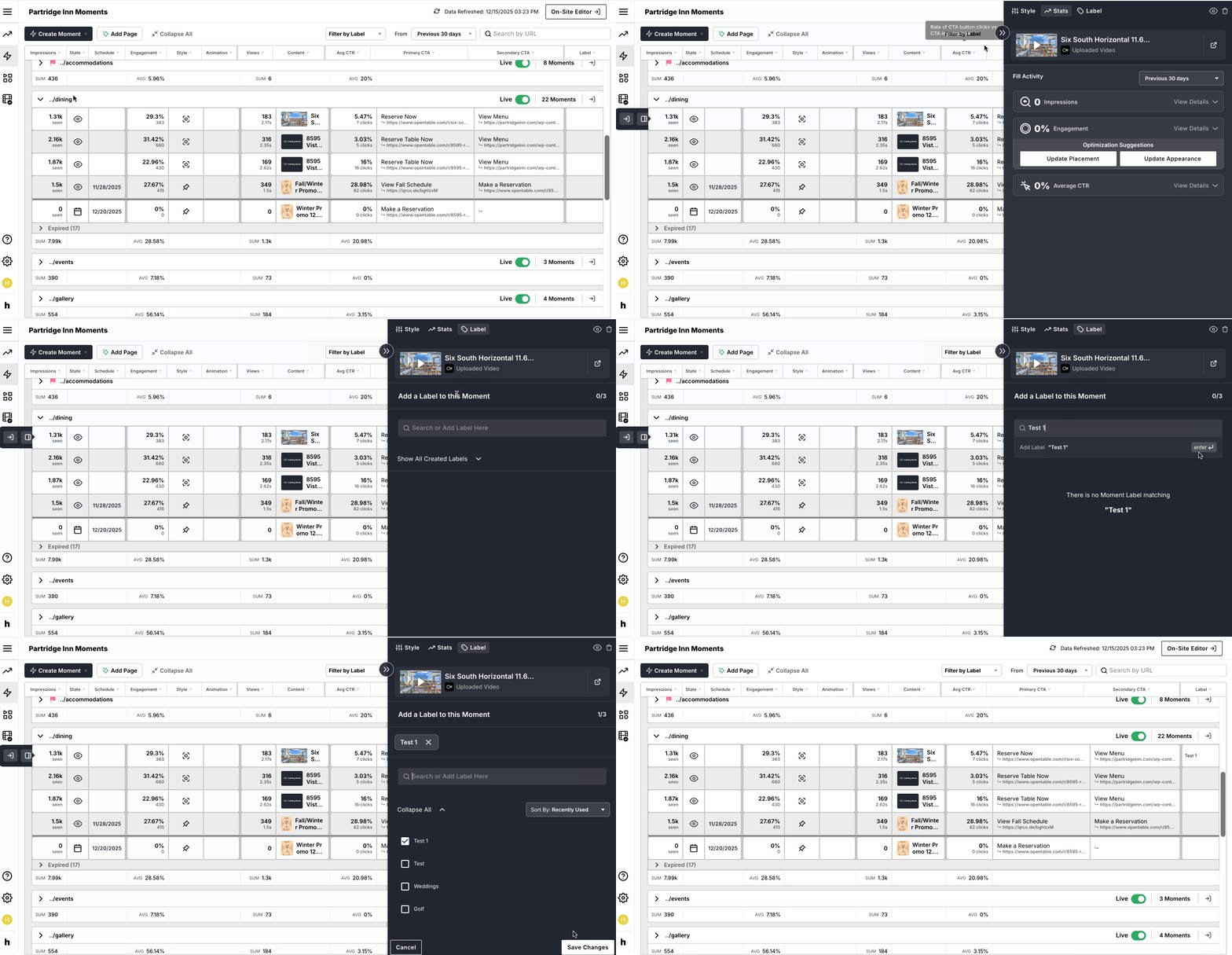
- Navigate to your “Moments Library”, the second option on the left side
- Navigate to the row of the Moment you want to add a label to and hover over it
- To the left of the row, click “Management Panel”
- The “Management Panel” will open on the right side of your screen
- Click the “Label” tab at the top of the panel
- Under the “Add a Label to this Moment” section, enter in the name of the label you want to add and hit enter
- The label will now be created and automatically be checked
- Click “Save Changes”
- You also have the option to select existing labels from the list before saving changes
- You can add a maximum of three labels per piece of content
- You can also add a new label to a moment through the on-site editor (View article here)
Tada! You added a new label to a moment in the moments library.