![Icon-Wordmark-50px-Sorbet-3.png]](https://help.gethovr.com/hs-fs/hubfs/Icon-Wordmark-50px-Sorbet-3.png?height=40&name=Icon-Wordmark-50px-Sorbet-3.png)
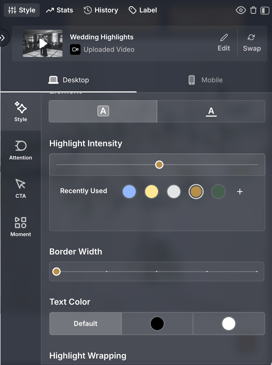
Easily change the text color behind a highlight during the Drop Flow of the Highlight Moment or by navigating back to the Style tab in the Management Panel
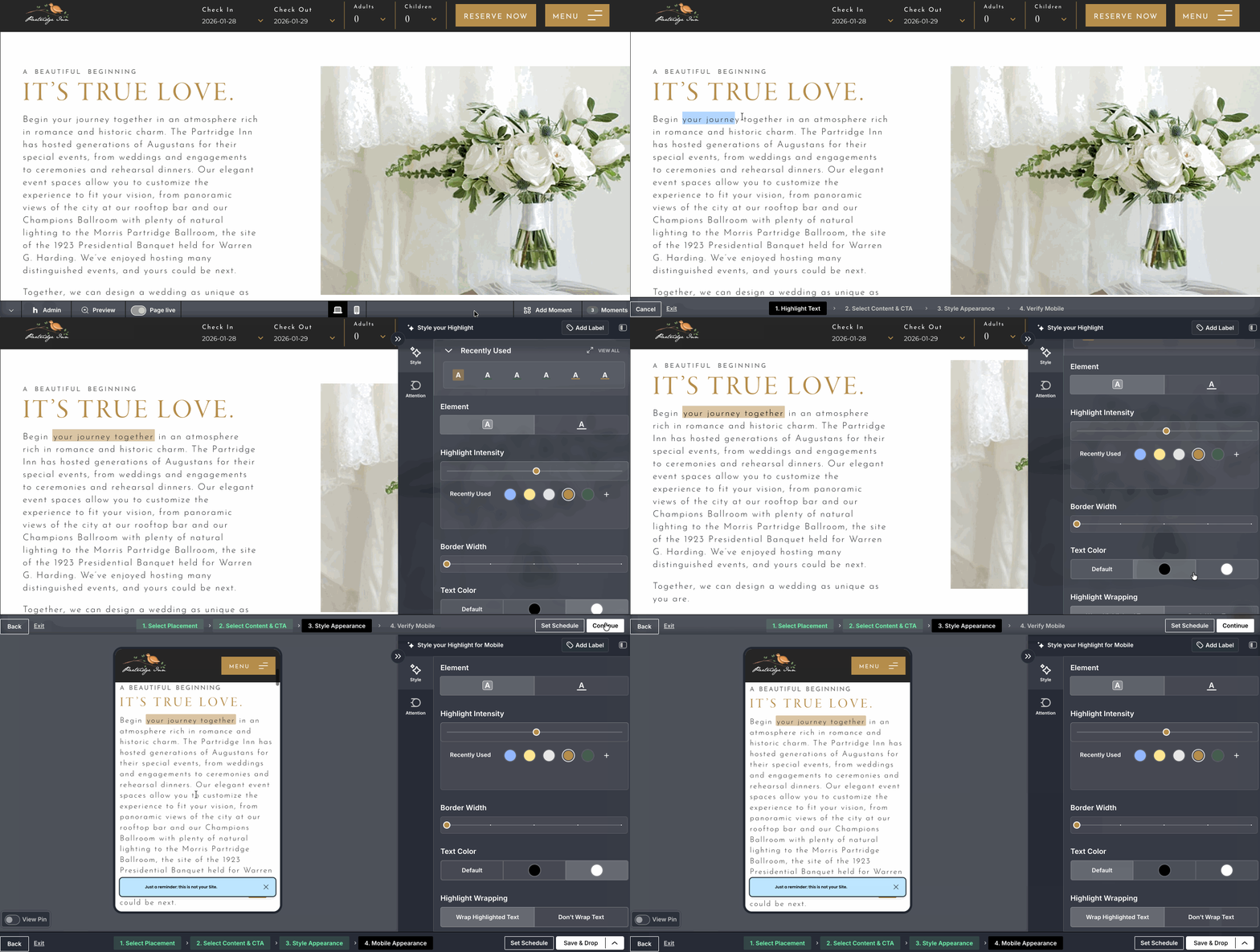
During the Drop Flow
- While in the onsite editor navigate to “Add Moment”
- Click “Highlight”
- Move through the “Drop Flow” for Highlights
- Stop at the management panel “Style Your Highlight”
- Navigate to “Text Color”
- Click “Default” to ensure the text color matches the default text on the page
- You also have the choice to choose “Black” or “White” text colors to further align with the text you are trying to match
- Click “Continue”
- Repeat this for “Style Your Highlight for Mobile”
- Click “Save and Drop”
Through the Style tab in the Management Panel
- Either in the Onsite Editor or in the Moments Library navigate to “Management Panel”
- The first tab “Style”
- Navigate to “Text Color”
- Click “Default” to ensure the text color matches the default text on the page
- You also have the choice to choose “Black” or “White” text colors to further align with the text you are trying to match
- Click on the “Mobile” tab to also update the “Text Color”
- Click “Save Changes”