![Icon-Wordmark-50px-Sorbet-3.png]](https://help.gethovr.com/hs-fs/hubfs/Icon-Wordmark-50px-Sorbet-3.png?height=40&name=Icon-Wordmark-50px-Sorbet-3.png)
There are two locations where you can set a Pin to load with thumbnail visible:
- In settings, select “Brand Kit”, then select “Pin Default”
- Choose “Default Pin State” for desktop or mobile to make specific change
- This will change all Pins across your site
- On the onsite editor, select the Pin you want to update and select the gray “Customize” button next to the Pin to “Override the Default Style”
- This will customize the individual Pin you are editing only
In both locations you can set a Pin to load with thumbnail visible
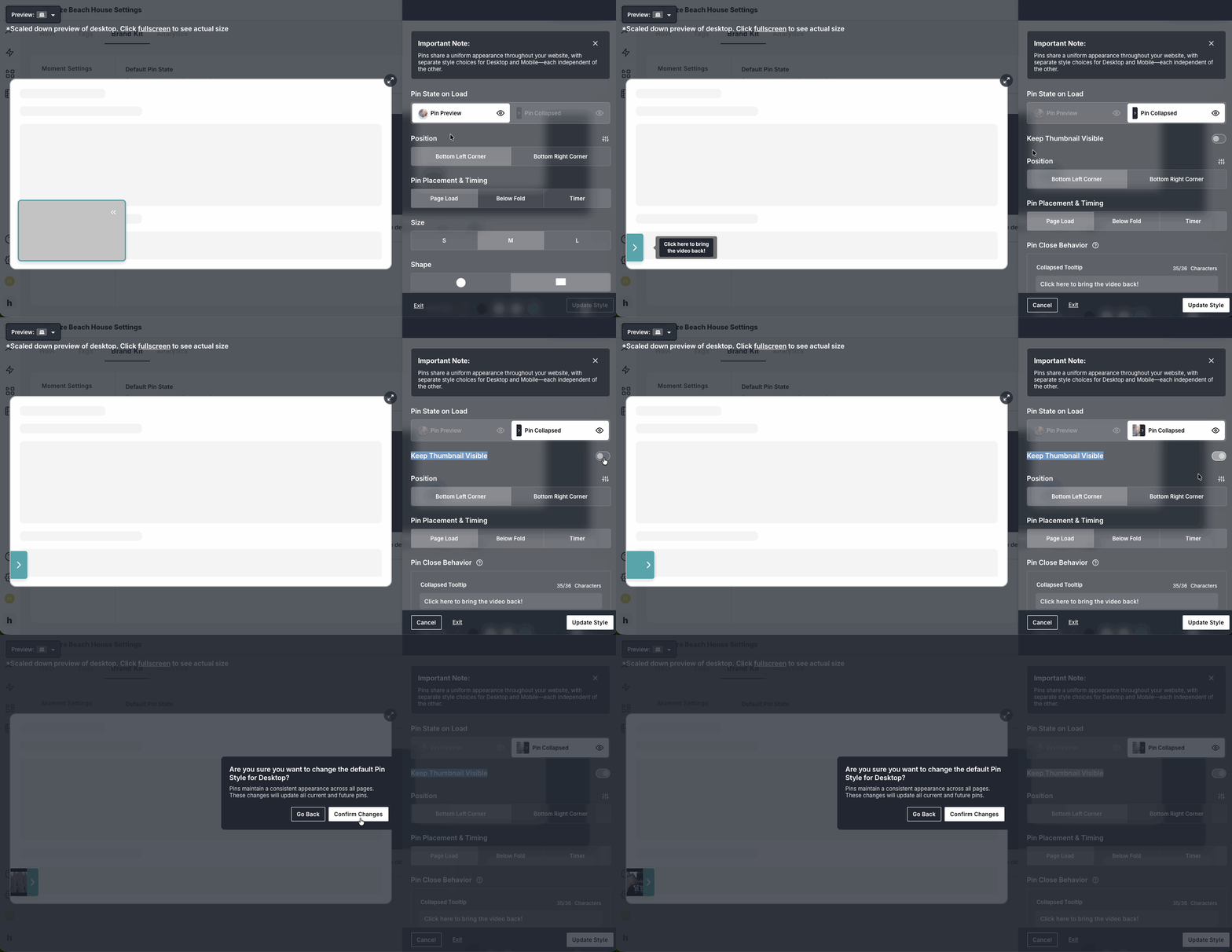
- Navigate to the “Pin State on Load” section
- Select “Pin Collapsed”
- A new option will then appear that says “Keep Thumbnail Visible” with a toggle
- Toggle “On” option to “Keep Thumbnail Visible”
- Click “Update Style”
- Click "Confirm Changes" to save