![Icon-Wordmark-50px-Sorbet-3.png]](https://help.gethovr.com/hs-fs/hubfs/Icon-Wordmark-50px-Sorbet-3.png?height=40&name=Icon-Wordmark-50px-Sorbet-3.png)
There are two locations where you can create a tooltip for a Pin:
- In settings, select “Brand Kit”, then select “Pin Default”
- Choose “Default Pin State” for desktop or mobile to make specific change
- This will change all Pins across your site
- On the onsite editor, select the Pin you want to update and select the gray “Customize” button next to the Pin to “Override the Default Style”
- This will customize the individual Pin you are editing only
In both locations you can create a tooltip for a Pin.
There are also two options for creating a Pin tooltip. One is in the Pin Preview state when selecting Pin Close Behavior to Minimize Pin on Site option. One is in the Pin Collapsed state for the Collapsed Tooltip.
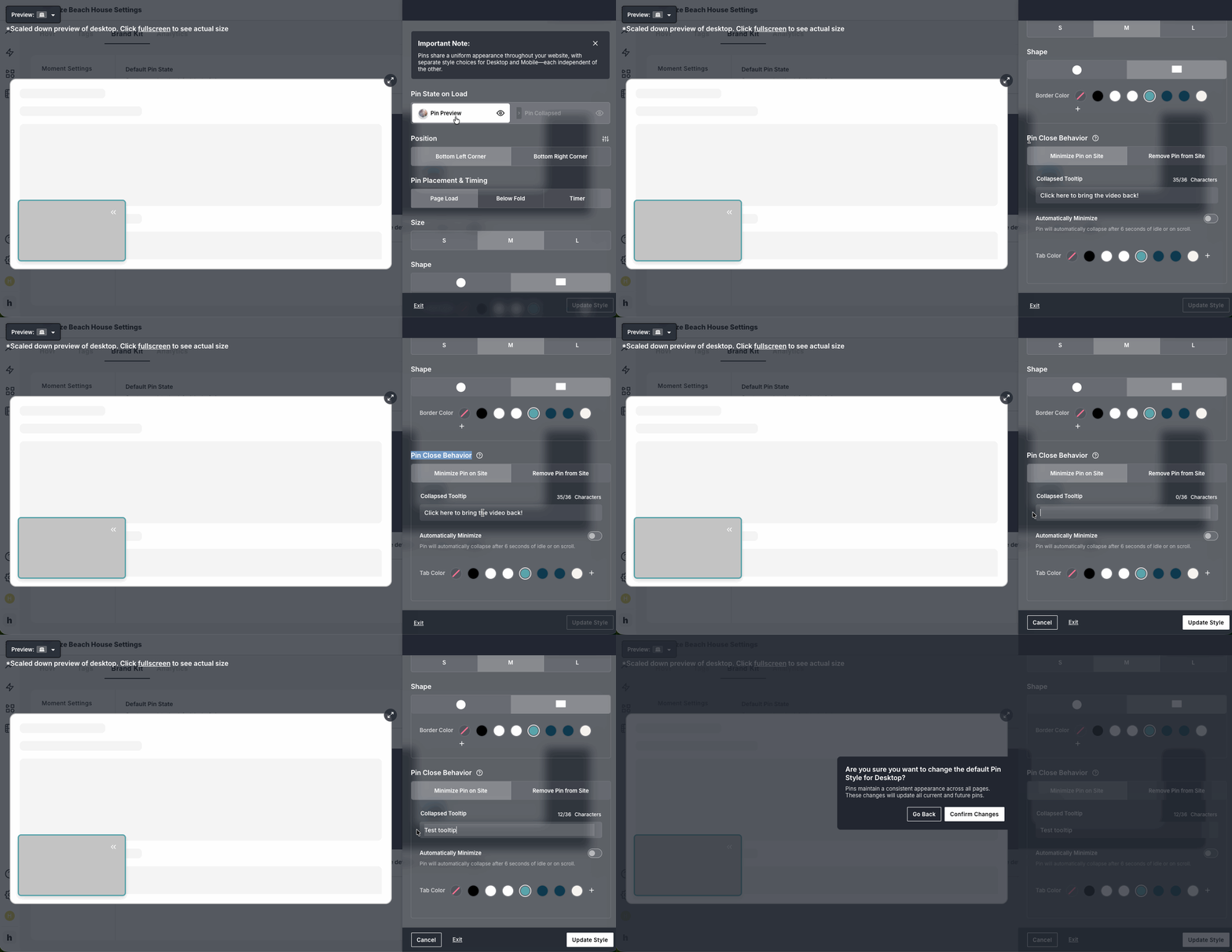
Creating a Tooltip in the Pin Preview state when selecting Pin Close Behavior to Minimize Pin on Site option
- Navigate to the “Pin State on Load” section
- Select “Pin Preview”
- Scroll down to “Pin Close Behavior” section
- Type in your tooltip in the box under “Collapsed Tooltip” up to 36 characters
- Click “Update Style”
- Click "Confirm Changes" to save
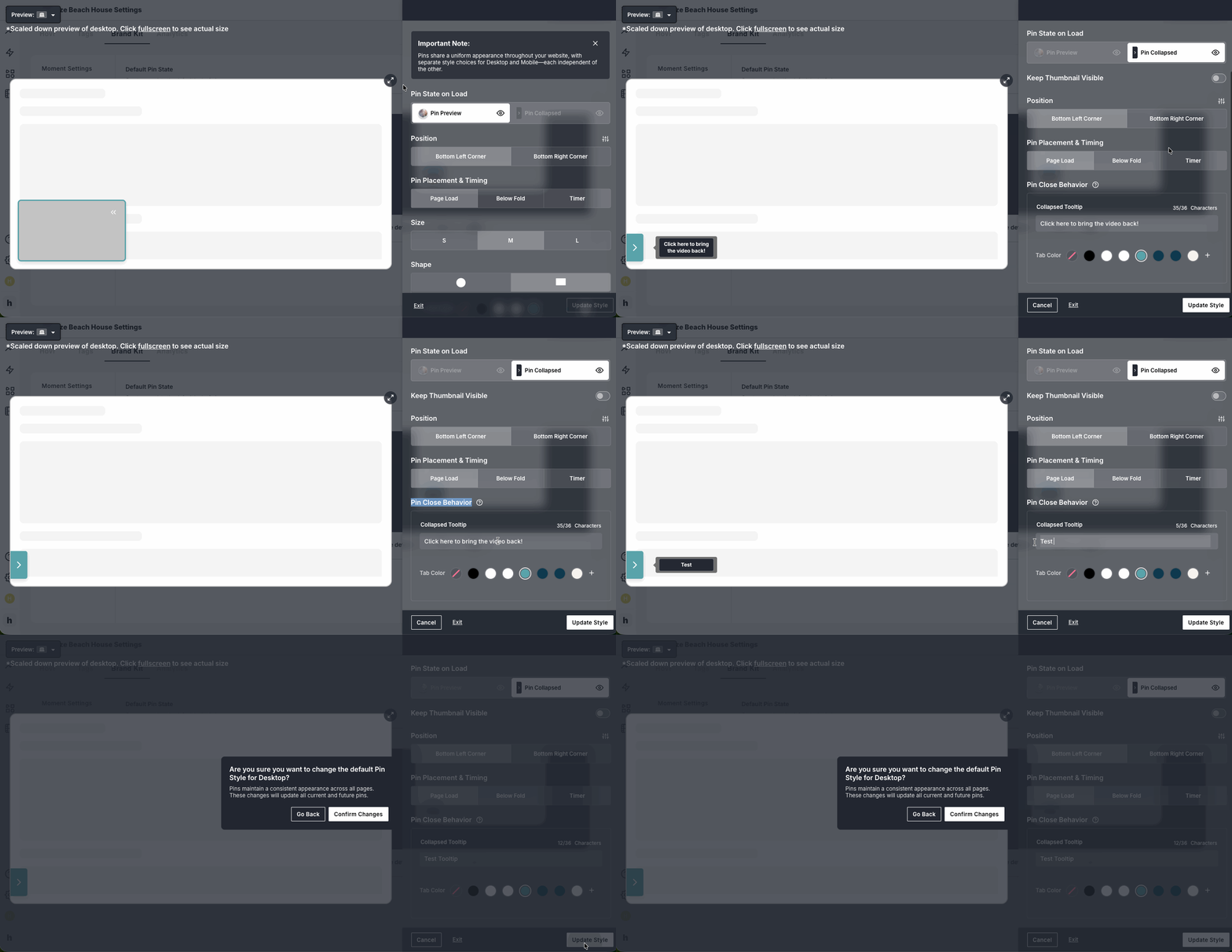
Creating a Tooltip in the Pin Collapsed state for the Collapsed Tooltip
- Navigate to the “Pin State on Load” section
- Select “Pin Collapsed”
- Scroll down to “Pin Close Behavior” section
- Type in your tooltip in the box under “Collapsed Tooltip” up to 36 characters
- Click “Update Style”
- Click "Confirm Changes" to save